Validation Errors
In this post, we’ll walk you through:
When editing events, there are required fields that must be filled out before an event can be published. There are also fields that must be filled out according to specific rules. If you do not fill out a required field or break a rule, a validation error will occur.
As long as you haven’t fixed the errors and republished the event if necessary, the event will remain a Draft. Changes in a Recurring Event are not applied to its Repeated Events if there is an error. Repeated Events therefore remain published in their previous state (without the new, invalid changes).
Reading the error report
When a validation error occurs, an error report appears in the event editor below the title. It is highlighted with a red border and a red title background with a warning icon.
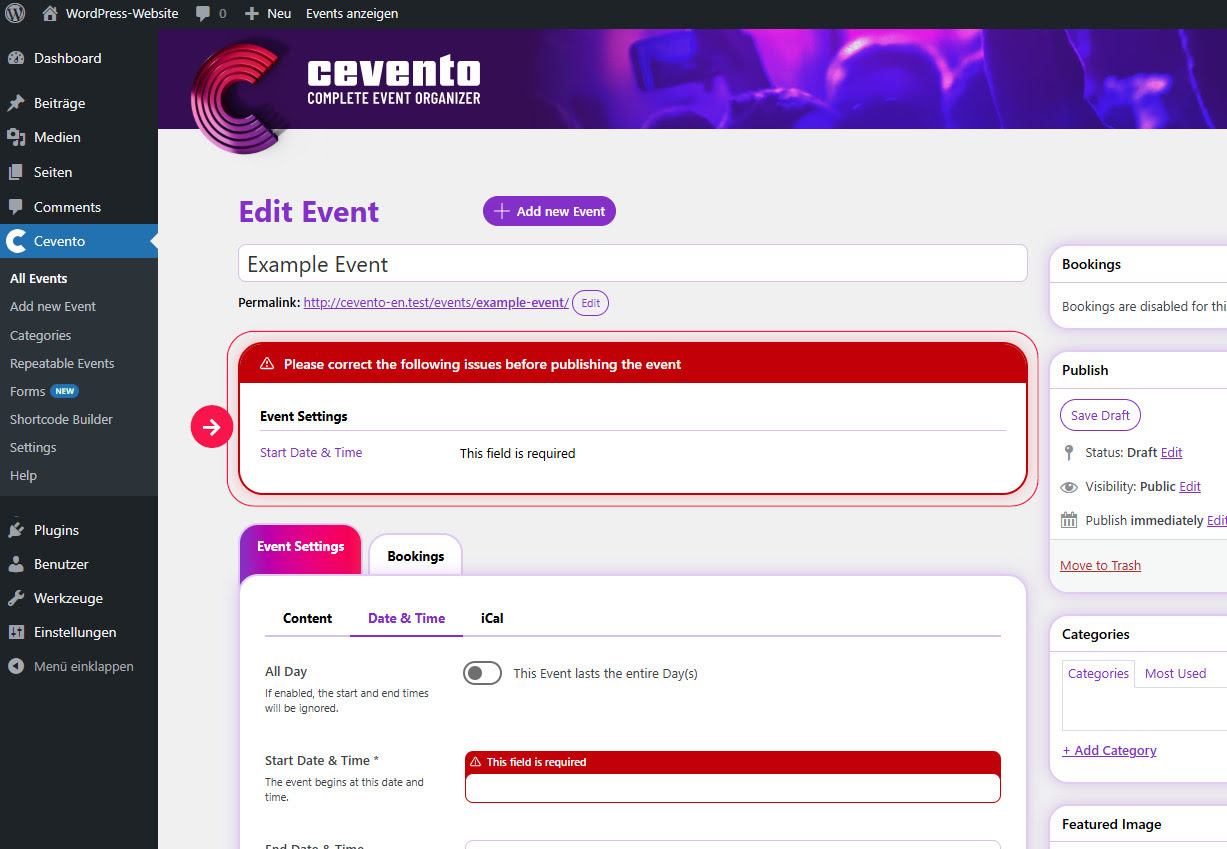
In the error report, you can read the specific errors next to the name of the corresponding field. They are sorted according to the tabs in which the faulty fields are located.
Locating the faulty field
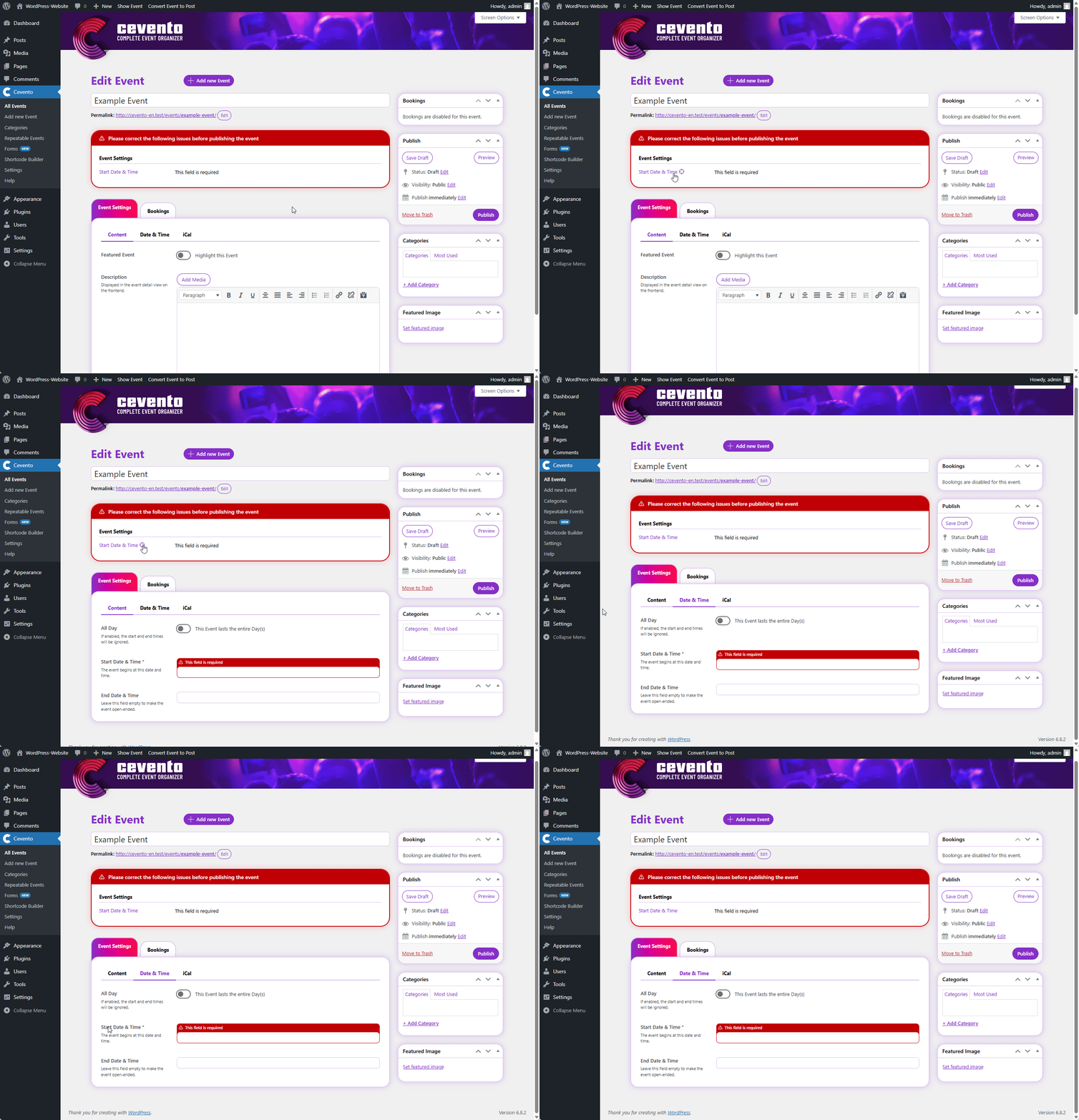
To find a faulty field, hover your mouse over the field name in the error report. A target icon will then appear. If you click on the field name, the editor will automatically scroll to the corresponding field in the event settings. The field will briefly be highlighted with an effect. The faulty field itself is always outlined with a red border. Above the field, you can also read the error message again.
Fixing errors
Once you have corrected all errors according to the error report, save your event. After successful saving, the error report and all red highlights will disappear.