Waitlists
In this post, we’ll walk you through:
Cevento allows you to enable overbooking using waitlists. This means that users can book a spot on the event even if there are no more available spots. All waitlisted bookings are stored as regular booking with a specific waitlist status.
Enabling the Waitlist
The waitlist is activated per event. Open the event editor and find the Bookings settings. Enable the option Booking Waitlist. Once enabled, users who submit the booking form after the event has reached its capacity are put on the waitlist instead of receiving a regular booking confirmation.
The waitlist only activates when the event has a maximum capacity set. Without a capacity limit, every submission is accepted as a normal booking regardless of this setting.
A global default can be set under Cevento → Settings → General → Booking Waitlist. Event-level settings always take precedence over the global default.
How the Waitlist Works
Free Events
- A user submits the booking form after the event is full. Their booking is saved with the status Waitlist and does not reserve a spot.
- An automated notification email is sent to the user confirming they are on the waitlist (see Email Templates below).
- The administrator reviews the waitlisted booking in the booking table and either accepts or declines it.
- Accept — the booking is confirmed immediately. Status changes to Confirmed and a confirmation email is sent to the user.
- Decline — the booking is cancelled. Status changes to Cancelled. No email is sent to the user.
Paid Events (WooCommerce Integration)
The flow for paid events includes an additional payment step:
- A user submits the booking form after the event is full. Their booking is saved with the status Waitlist and does not reserve a spot or count toward capacity.
- The user receives a waitlist notification email.
- The administrator accepts the waitlist booking via the Accept action. The booking status changes to Waiting for Payment.
- The user receives an automated email containing a payment link — a link that adds the booking directly to the WooCommerce cart and redirects to checkout.
- The user completes the payment. Once confirmed by WooCommerce, the booking status changes to Paid and the spot is reserved.
Only one checkout session can be active for a given booking at a time. When a user opens the payment link, a 30-minute checkout window is reserved exclusively for that session. During those 30 minutes, no other session can use the same link. If the window expires without a completed payment, the link becomes usable again. The payment link itself stays valid for 7 days and can be reused as often as needed within that period — use Resend Payment Link only if you want to invalidate the current link and issue a fresh one.
Waitlisted bookings and bookings with status Waiting for Payment are never automatically abandoned by the 10-minute pending expiry. Only regular pending bookings are subject to that timeout.
Waitlist specific booking statuses
| Status | Meaning |
|---|---|
| Waitlist | On the waiting list. No spot reserved. Awaiting admin action. |
| Waiting for Payment | Admin accepted the booking (paid events only). Payment link sent. No spot reserved until payment completes. |
| Confirmed / Paid | Accepted and (for paid events) payment received. Spot is reserved. |
| Cancelled | The waitlist booking was declined by the administrator. |
Waitlist specific admin actions
Hover over a booking row in the booking table to reveal the available admin actions:
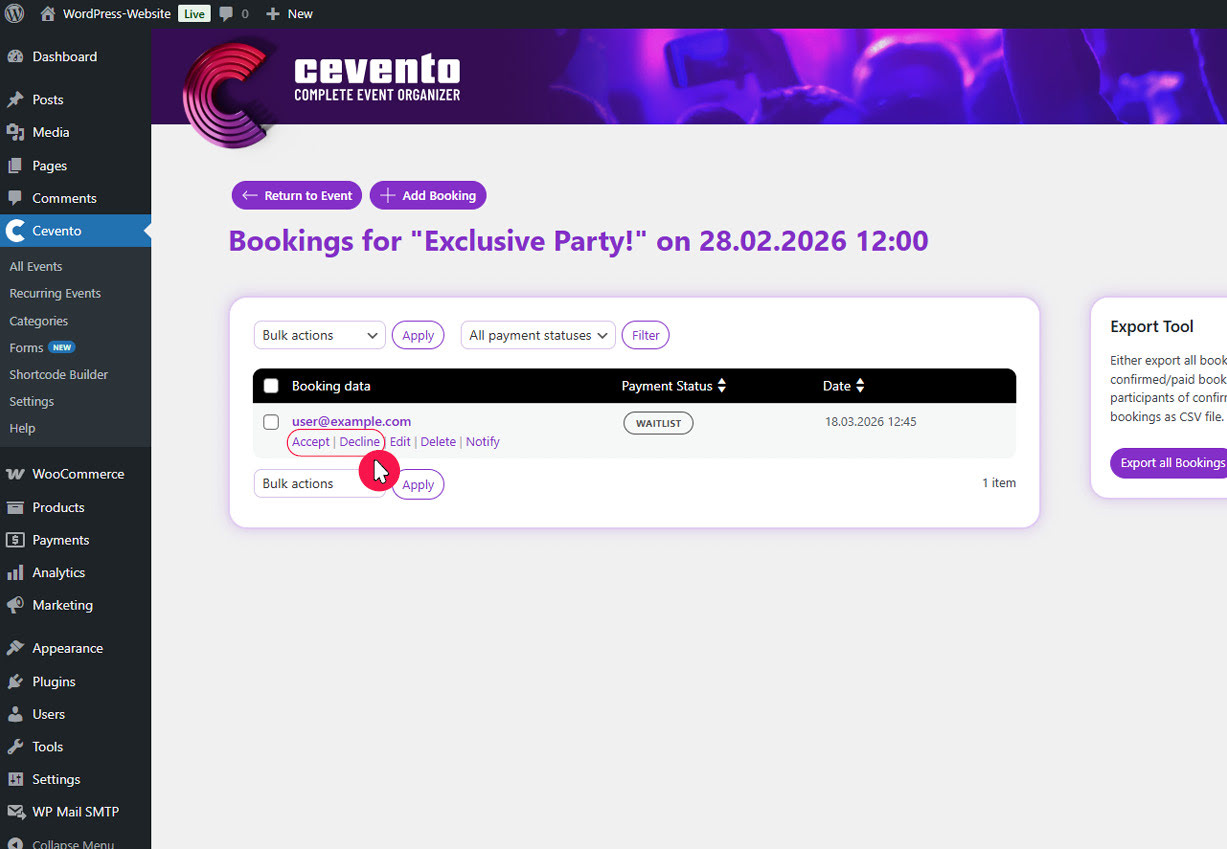
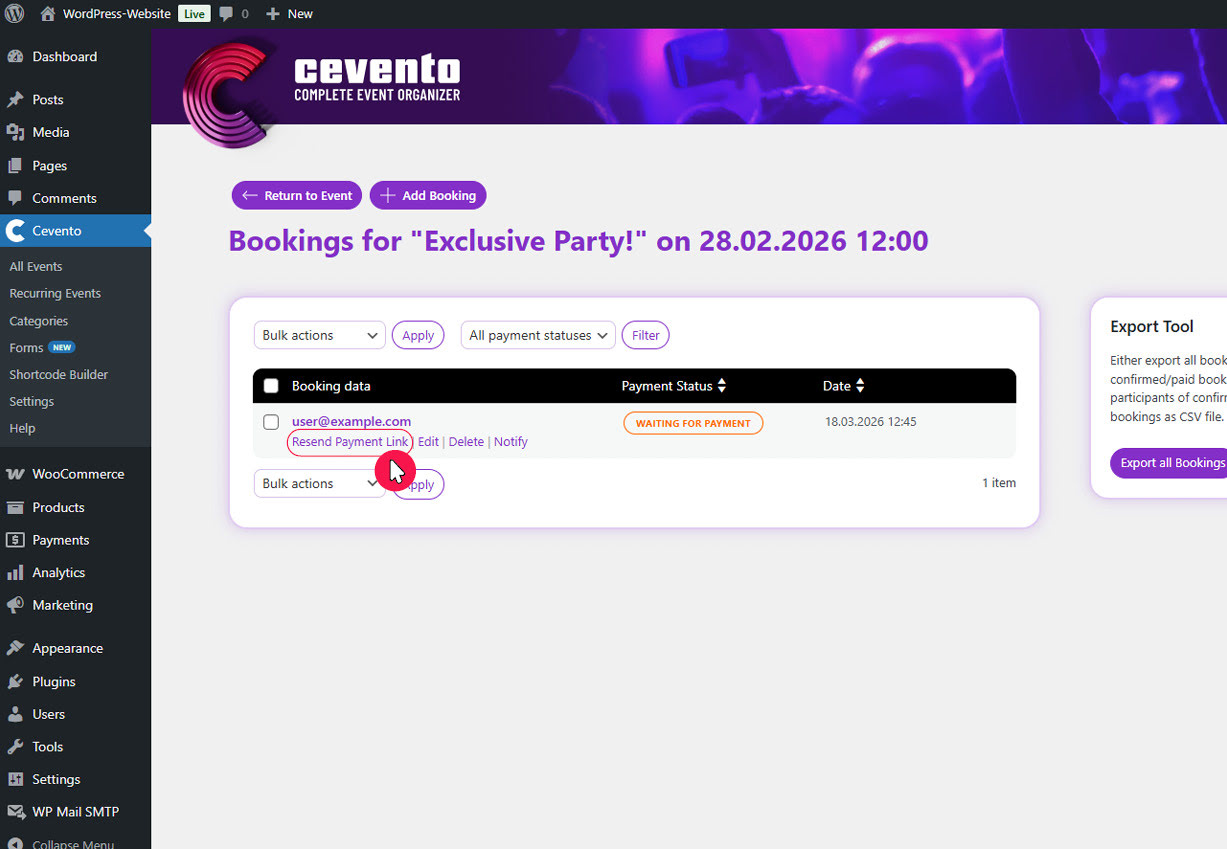
Accept
- Free events — confirms the booking immediately. Status changes to Confirmed and a confirmation email is sent.
- Paid events — moves the booking to Waiting for Payment and sends the payment link email to the user.
Decline
Cancels the booking and sets the status to Cancelled without sending any emails.
Resend Payment Link
Sends a new payment link email to the user. The previously issued link is invalidated immediately, so only the newly sent link remains valid.
Email Templates
Cevento sends automated emails at each progressing stage of the waitlist flow to the user. Subject lines and body text can be customised globally in Cevento → Settings → Emails → Booking Waitlist or in the Email Templates tab of the event editor (per-event overrides).
| Template | Sent when | Recipient |
|---|---|---|
| Waitlist Registration | A user is put on the waitlist | User |
| Confirmation: User Subject / Content | Admin accepts a waitlist booking on a free event | User |
| Paid Confirmation: User Subject / Content | Admin accepts a waitlist booking on a paid event. | User |
The {payment} Placeholder
In the Paid Confirmation email body, use the placeholder {payment} to insert the payment link as a clickable link. The link label is controlled by the Waitlist Payment Button Label setting under Cevento → Settings → WooCommerce.
If {payment} is missing from the email body, the user will not receive the payment link and cannot complete their booking. Always include it in the Paid Confirmation template.
Payment Link Security
Each payment link is:
- Reusable — the same link can be opened again after a checkout window expires. It is not consumed on click.
- Exclusive per session — opening the link reserves a 30-minute checkout window for that session. No other session can start a checkout for the same booking during this window.
- Cart-limited — the booking item in the cart expires after 30 minutes. If the window passes without completed payment, the item is removed from the cart and the link can be used again.
- Time-limited — the link expires automatically after 7 days from issuance.
- Invalidated on resend — using Resend Payment Link revokes the current link before a new one is issued.
If two recipients of the same email click the link at the same time, only the first request gets the checkout window. The second request is rejected with a message indicating that a checkout is already in progress. The booking status is additionally re-validated at the cart and checkout stages: if the booking has already been paid or is no longer in Waiting for Payment status, the cart item is removed automatically and the user is getting informed via a descriptive validation error.