Tickets & Scanner App
In this post, we’ll walk you through:
Cevento can create PDF tickets for confirmed bookings and attach them to the corresponding booking confirmation emails. Each ticket contains a unique QR code that can be checked at the entrance with the Cevento scanner app. This allows you to see whether a ticket is valid, whether it has already been scanned, and which booking it belongs to.
Tickets can be enabled globally and then adjusted for individual events. The scanner app is optimized for phones and can be opened directly from the Cevento settings or from the event editor.
Tickets are only valid for bookings that are allowed to enter the event. For free events, the booking must be Confirmed. For paid events, the booking must be paid successfully.
Enable tickets globally
To enable tickets for all events by default, go to Cevento → Settings and open the Tickets section.
Activate the Tickets setting. From now on, Cevento will attach PDF tickets to user-facing booking confirmation emails for events that use the global ticket setting.
In the same section, you can also configure the default ticket design:
- Ticket Logo: Logo shown on generated tickets.
- Ticket Text: Short text shown on every ticket, for example entrance instructions.
- Ticket Footer: Footer text shown below the ticket details. Paragraphs are split into two columns automatically.
- Demo Ticket: Downloads a sample PDF so you can check the current layout.
- Scanner App: Opens the scanner app directly or shows a QR code you can scan with the entrance device.
- Scanner App Link: Sends the scanner app link to an entrance team member by email.
Use the demo ticket before the first event. It is the quickest way to check whether the logo, text, and footer work well on the generated PDF.
Configure tickets for a single event
Open the event editor and go to the event settings. In the Bookings section, the Tickets field lets you decide whether the event should use tickets.
The following options are available:
- Use global setting: Uses the global ticket setting from Cevento → Settings.
- Yes: Enables tickets for this event, even if they are disabled globally.
- No: Disables tickets for this event, even if they are enabled globally.
When tickets are enabled for an event, an additional Tickets tab appears in the event editor. There you can override the global ticket logo, ticket text, and ticket footer for this specific event. You can also download a demo ticket using the event-specific settings.
Ticket emails
For free events, Cevento attaches the ticket PDF to the booking confirmation email sent to the user.
For paid events using the WooCommerce integration, the ticket PDF is attached to the WooCommerce order confirmation emails after successful payment.
If you manually resend a confirmation email, Cevento generates the ticket again and attaches it to the email again. The ticket still belongs to the same booking.
Scanner App
Structure of the scanner app for ticket checks:
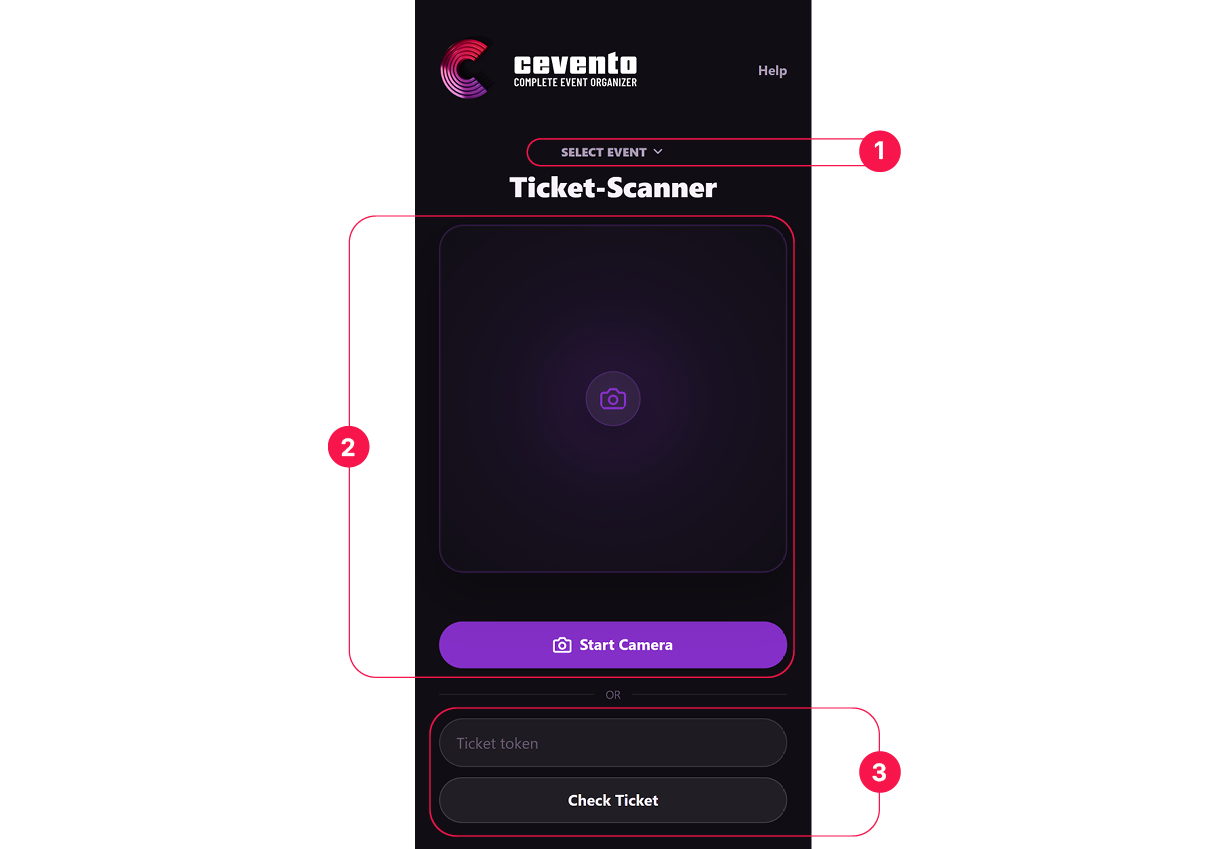
- Event selection: If the scanner app was opened globally, you can select the event for which you want to scan tickets here. If the scanner app was opened directly from an event, the event is already preselected.
- Camera area: To start the camera, click Start Camera or the empty area with the camera icon. Point the camera at the QR code on the ticket. Cevento checks the ticket immediately and shows the result automatically.
- Manual ticket check: If the camera is unavailable or the QR code cannot be read, use the manual input field. Enter the ticket token and click Check Ticket. The result is the same as with a camera scan.
Open the scanner app
The scanner app can be opened in two places:
- Globally under Cevento → Settings → Tickets.
- In the event editor, in the Tickets tab, when tickets are enabled for that event.
You can open the scanner app directly with the button, or scan the displayed QR code with the phone that will be used at the entrance.
The scanner app requires a logged-in WordPress user who is allowed to scan tickets. Administrators can scan tickets. Cevento also creates the user role Cevento Ticket Scanner for entrance team members who should only access the scanner.
Camera scanning usually requires a valid SSL certificate on mobile devices. If the camera cannot be started, you can still enter the ticket token manually in the scanner app.
Scan tickets
Open the scanner app on the entrance device and click Start Camera. Point the camera at the QR code on the ticket. Cevento checks the ticket immediately and shows the result.
The scanner can show the following results:
| Result | Meaning |
|---|---|
| Valid | The ticket belongs to an eligible booking and has now been checked in. |
| Already scanned | The ticket was already scanned before. The scanner shows when the scan happened. |
| Invalid | The ticket could not be found, belongs to another event, or is not valid for entry. |
After a successful scan, the booking is marked as scanned. The same ticket cannot be checked in a second time without showing the “already scanned” warning.
Participant count
After a successful scan, the app shows how many participants are connected to the ticket. This helps the entrance team understand whether one scanned ticket represents one person or multiple participants.
Manual ticket check
If the camera is unavailable or the QR code cannot be read, use the manual input field in the scanner app. Enter the ticket token and click Check Ticket. The result is the same as with a camera scan.
Booking table scan status
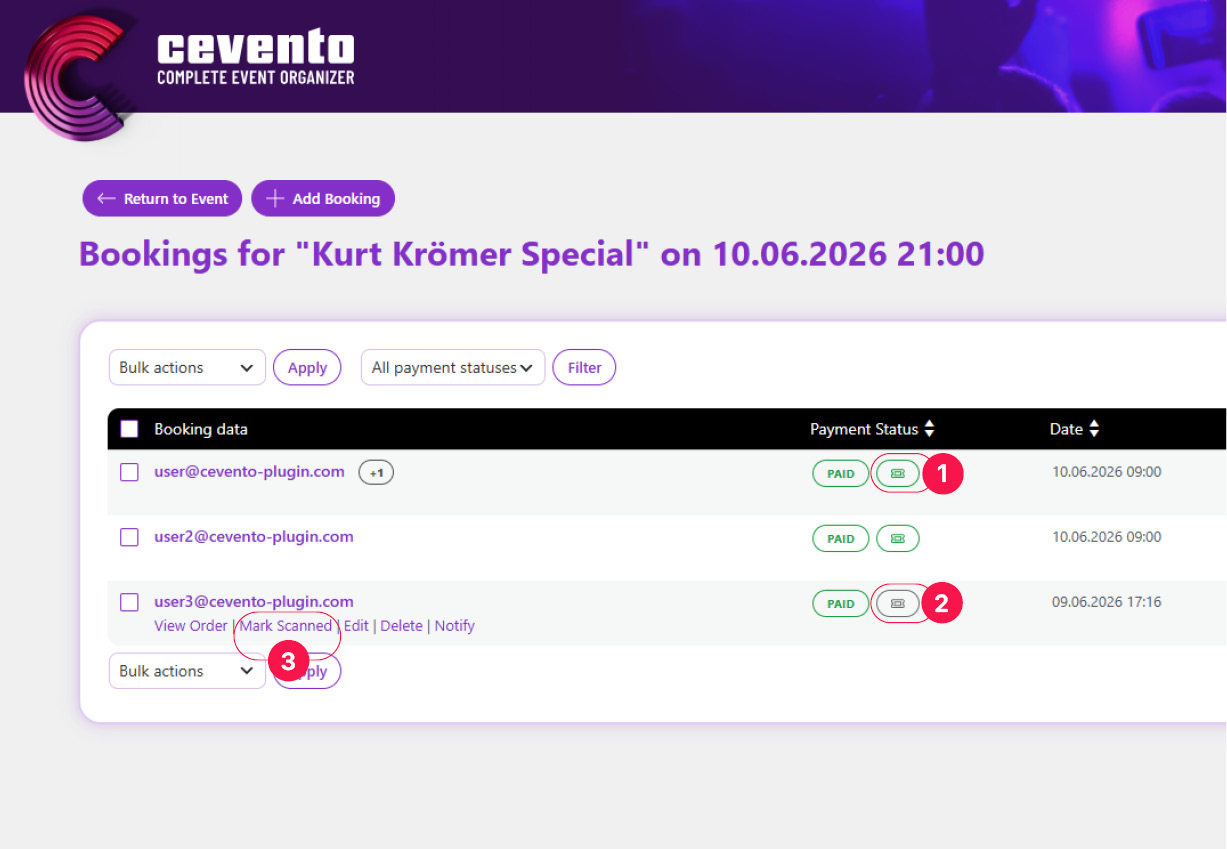
When tickets are enabled for an event, the booking table shows a ticket icon next to each booking. You can use it to see whether a ticket has already been scanned. (green icon (1): scanned successfully, gray icon (2): not scanned yet)
The booking table also provides quick actions for tickets (see No. 3 in the screenshot, depending on the current scan status of the ticket, one of the two actions is shown):
- Mark Scanned: Marks a ticket as scanned manually.
- Undo Ticket Scan: Removes the scanned state manually.
These actions are useful if a ticket was checked at the entrance without the scanner app, or if a scan was triggered by mistake.
You can also filter the booking table by scanned and unscanned tickets. This makes it easier to review attendance during or after an event.
Good to know
Tickets do not replace booking status management. A booking still has its regular booking status, such as Pending, Confirmed, or Cancelled. The ticket scan state is an additional piece of information used for entrance control.