Edit an Event
In this post, we’ll walk you through:
In Cevento, there are differences to consider when editing an event that is still a draft versus one that has already been published. The following explains editing based on event type and status.
As soon as an event is saved and a validation error occurs, the event is set to draft. The event will remain a draft until the validation error is fixed and the event is published again. Repeated events whose Recurring Event has a validation error remain published and are only updated after the Recurring Event is corrected and saved again.
Single Event
To edit single events, go to the WordPress dashboard under Cevento → All Events. There you have two options to edit an event:
- Click on the title of the event
- Hover over the event title and click the Edit link that appears underneath
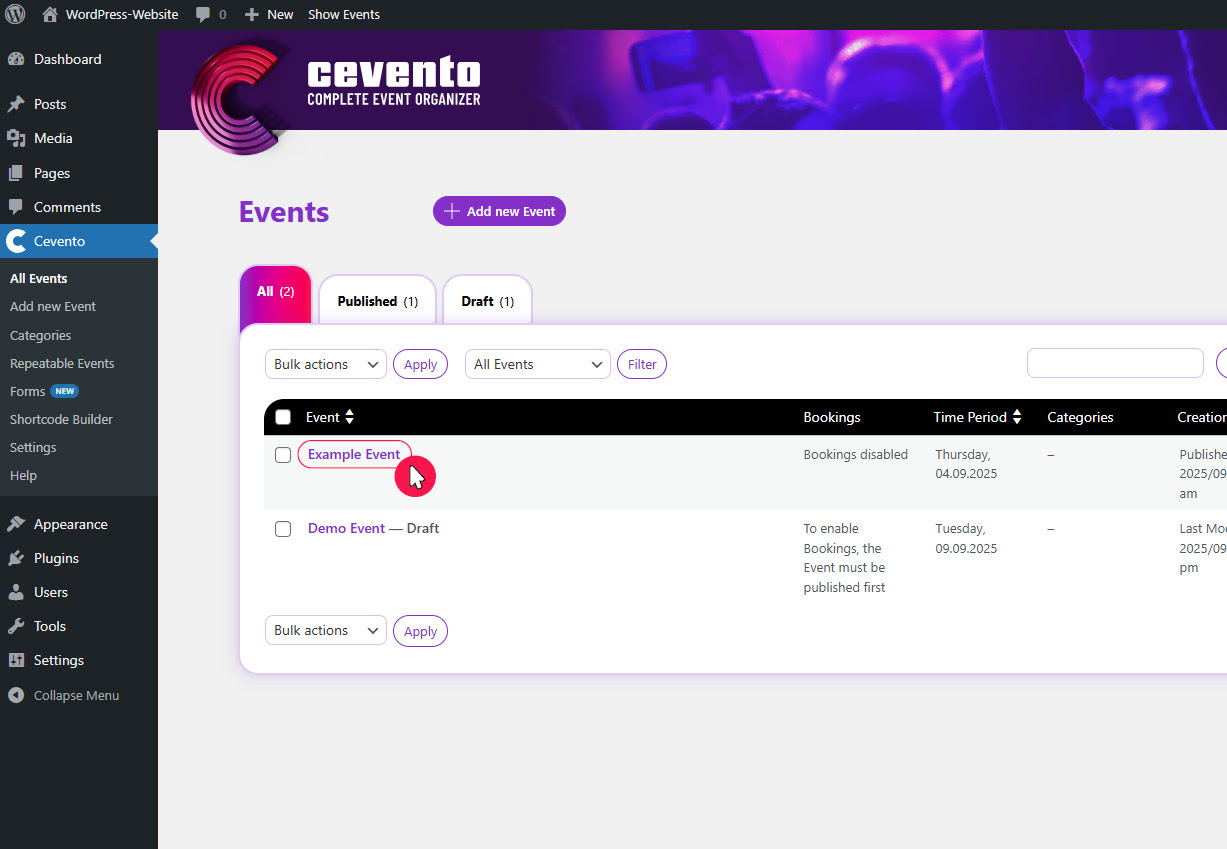
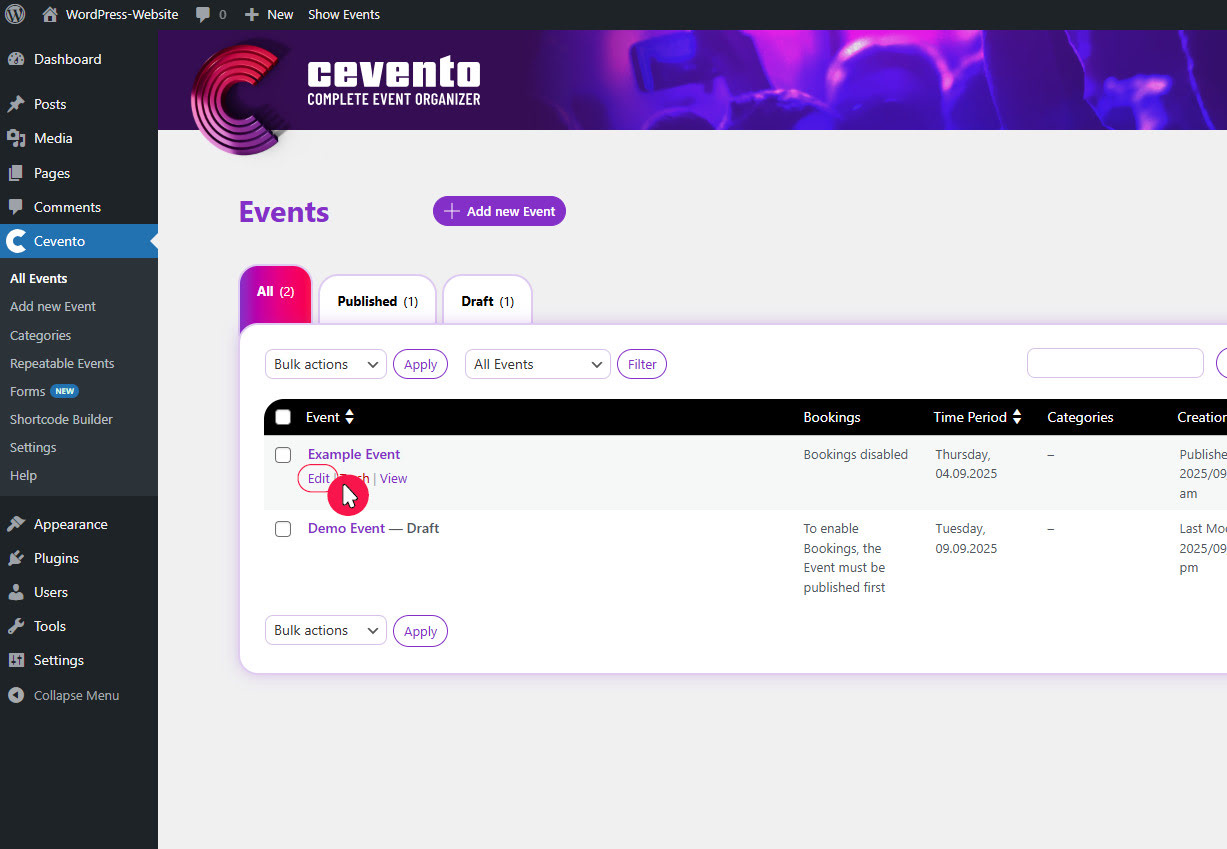
After using either option, you’ll be taken to the event editor where you can adjust the event settings (see description of settings).
Editing a draft event
Since drafts are neither visible on the website nor bookable, there are no restrictions when editing them.
Editing published events
When editing published events, you only need to be careful if the event has already received bookings. Existing bookings are not deleted or changed by modifying the event date. However, you should consider informing your users if their booking now falls within a time period that is no longer covered by the event. Information on where to find the booking overview is available in the documentation.
Recurring Event
To edit Recurring events, go to the WordPress dashboard under Cevento → Recurring Events. There you have two options to edit:
- Click on the event title
- Hover over the event title and click the Edit link that appears underneath
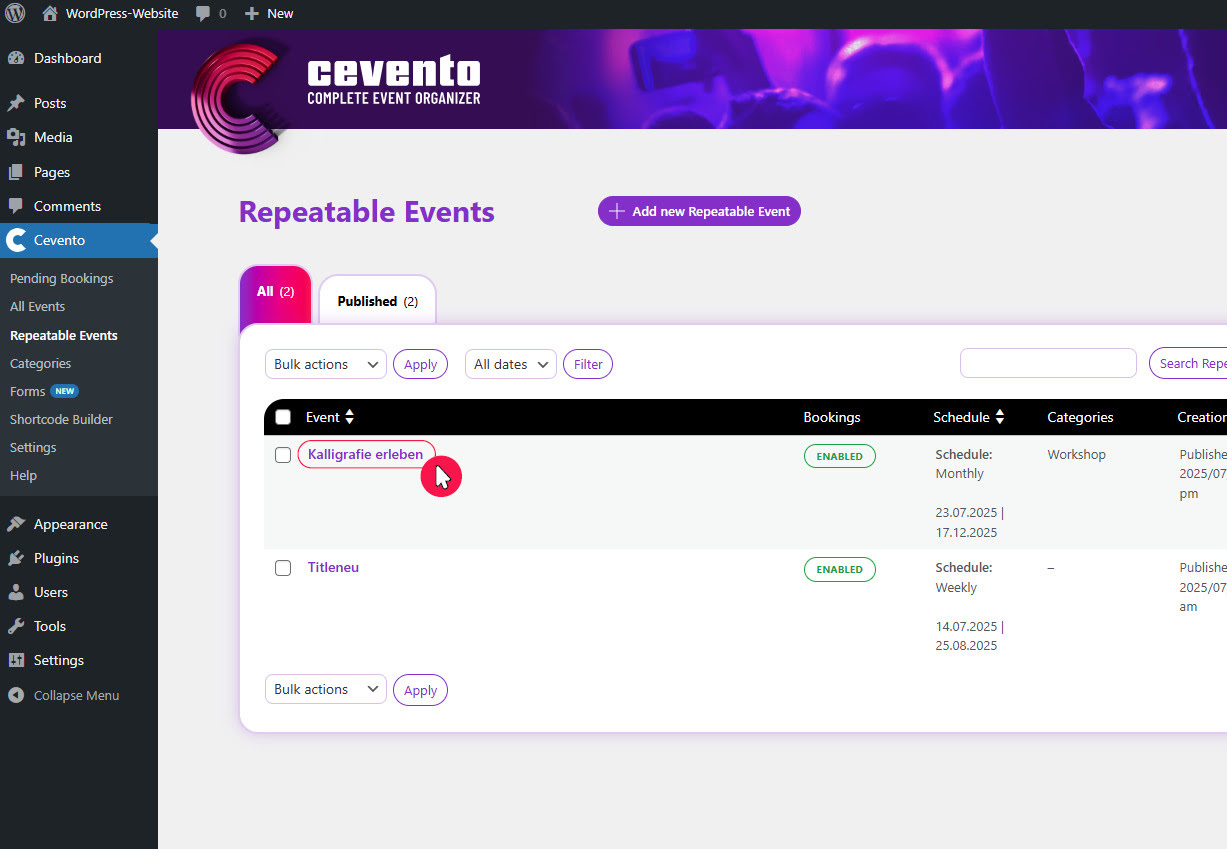
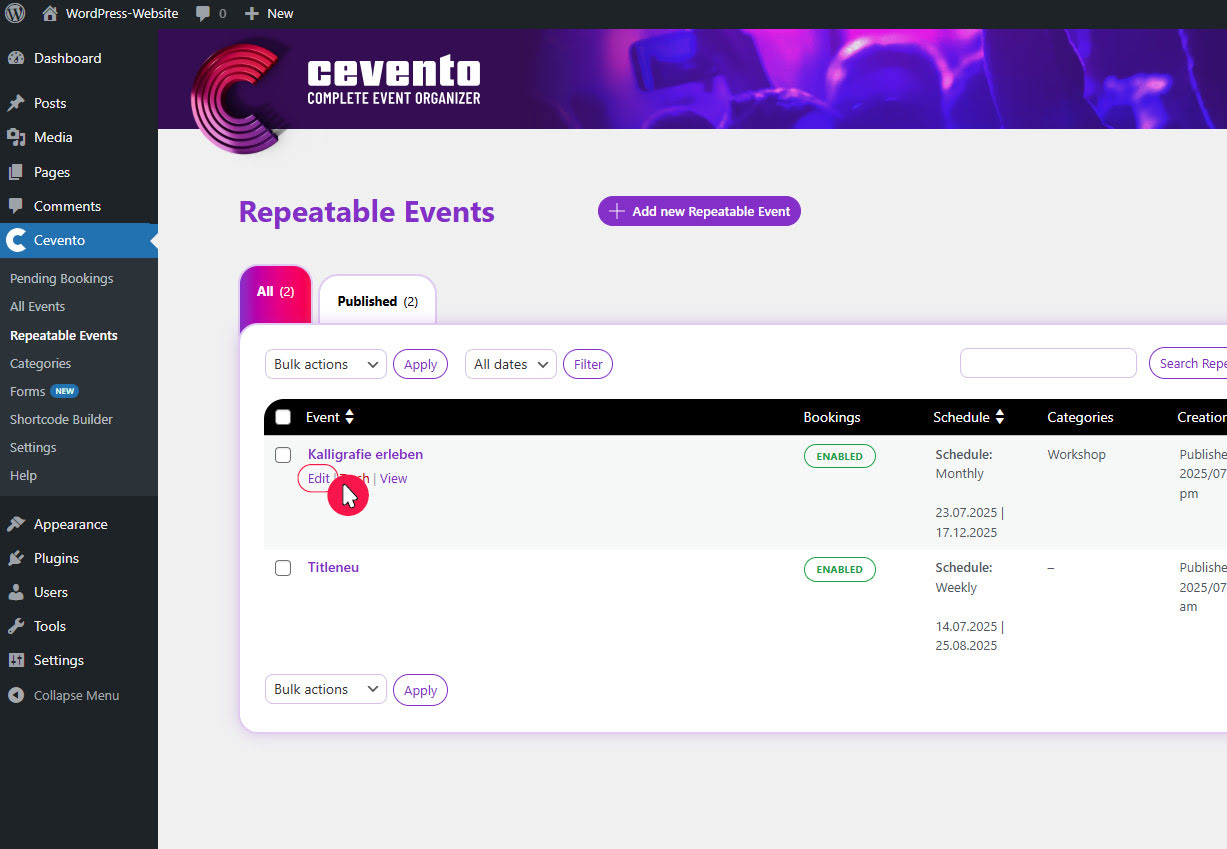
After using either option, you’ll be taken to the event editor where you can adjust the event settings (see description of settings).
Editing a draft Recurring Event
Since drafts are neither visible on the website nor bookable, there are no restrictions when editing them. However, if a Recurring Event has previously been published, please note the remarks about editing published Recurring events below.
Editing published Recurring events
All changes outside the Schedule tab can be updated without issues. However, great caution is needed if you want to adjust the Schedule of a Recurring Event after it has already been published. Once you change and update the Schedule, all existing repeated events — including their bookings — will be deleted before new events are generated according to the updated Schedule.
This means all previous bookings will be lost after adjusting the Schedule. Therefore, if you want a new Schedule, it is recommended to set the outdated event to draft or alternatively export the bookings and keep them as a file. This way, old bookings remain preserved and can still be accessed if needed. Afterwards, you can create a new Recurring Event with the new Schedule.
Repeated Event
Repeated events are managed by a Recurring Event and therefore cannot be edited while they are linked. However, you have the option to detach a single repeated event from a Recurring Event. Once detached, the event becomes a normal single event.
Detaching is a permanent action. This means you cannot undo it, and changes made in the Recurring Event will no longer affect the detached event. The detached event is also automatically excluded from the Schedule. This means that the time slot previously covered by this event will no longer be managed by the Recurring Event.
To detach a repeated event, go to the WordPress dashboard under Cevento → Recurring Events. There you have two options to initiate detachment:
- Click on the event title
- Hover over the event title and click the Edit link that appears underneath
After using either option, a pop-up will appear informing you about the detachment. This pop-up has both a button and a link. The button Edit Recurring Event takes you to the event editor of the Recurring Event. To permanently detach the event, click the link Permanently detach from Recurring Event.
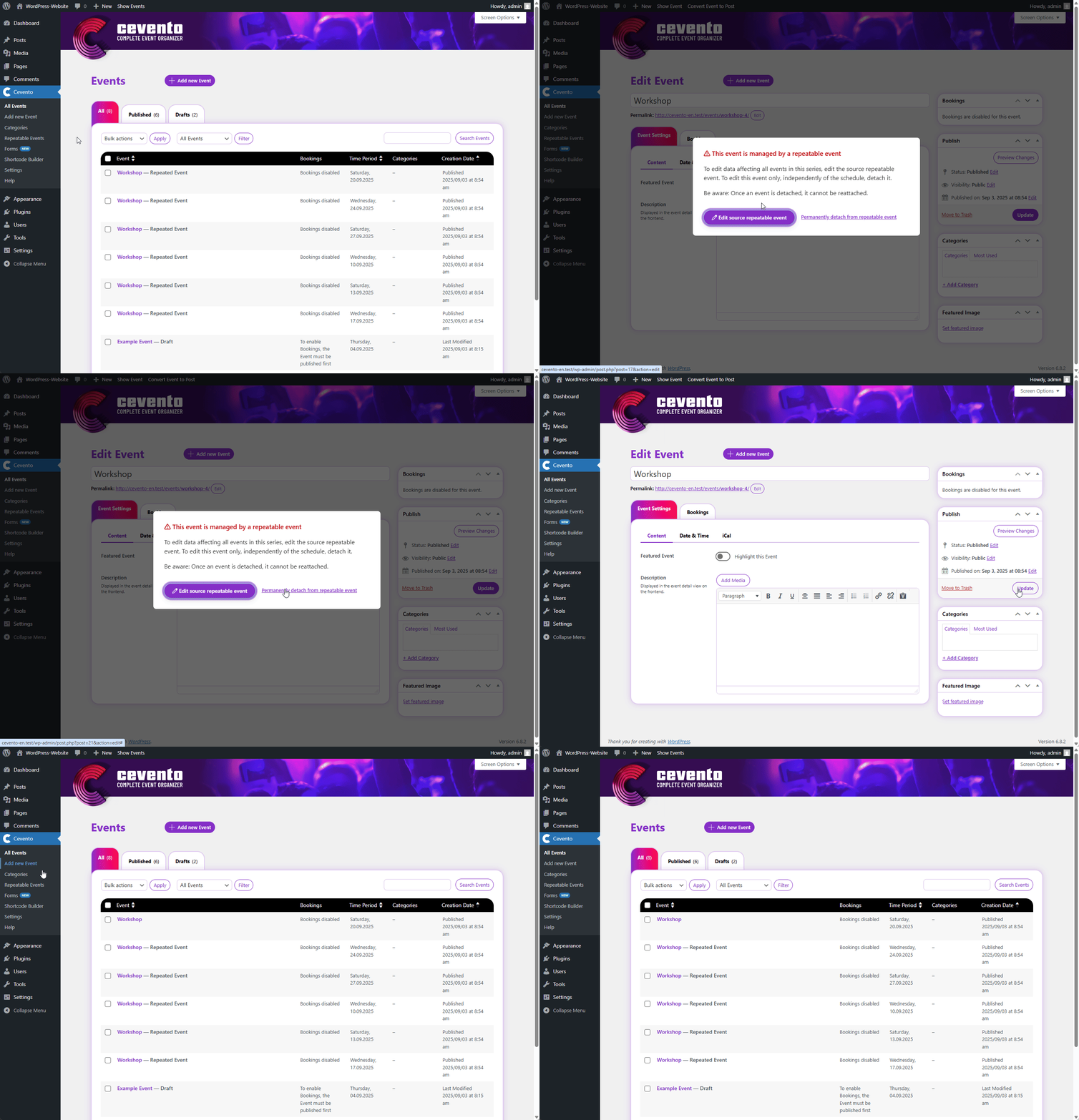
Detaching draft repeated events
You can safely detach repeated events that are set to draft in order to edit them separately.
Detaching published repeated events
Detaching published repeated events is also safe. Once detached, they can be edited like normal single events.
Next steps
- Read more about validation errors
- Learn more about bookings