YOOtheme
In this post, we’ll walk you through:
Cevento also offers an integration for the YOOtheme Page Builder. This allows you to easily insert your events into your custom YOOtheme pages and templates.
Insert the Event Listing YOOtheme Element
When using YOOtheme, Cevento adds an element to the YOOtheme element library that lets you insert an event listing with just a few clicks. To do this, open the builder of your page and insert the Event Listing element from the element library. YOOtheme also provides a comprehensive documentation if you have questions about the Page Builder.
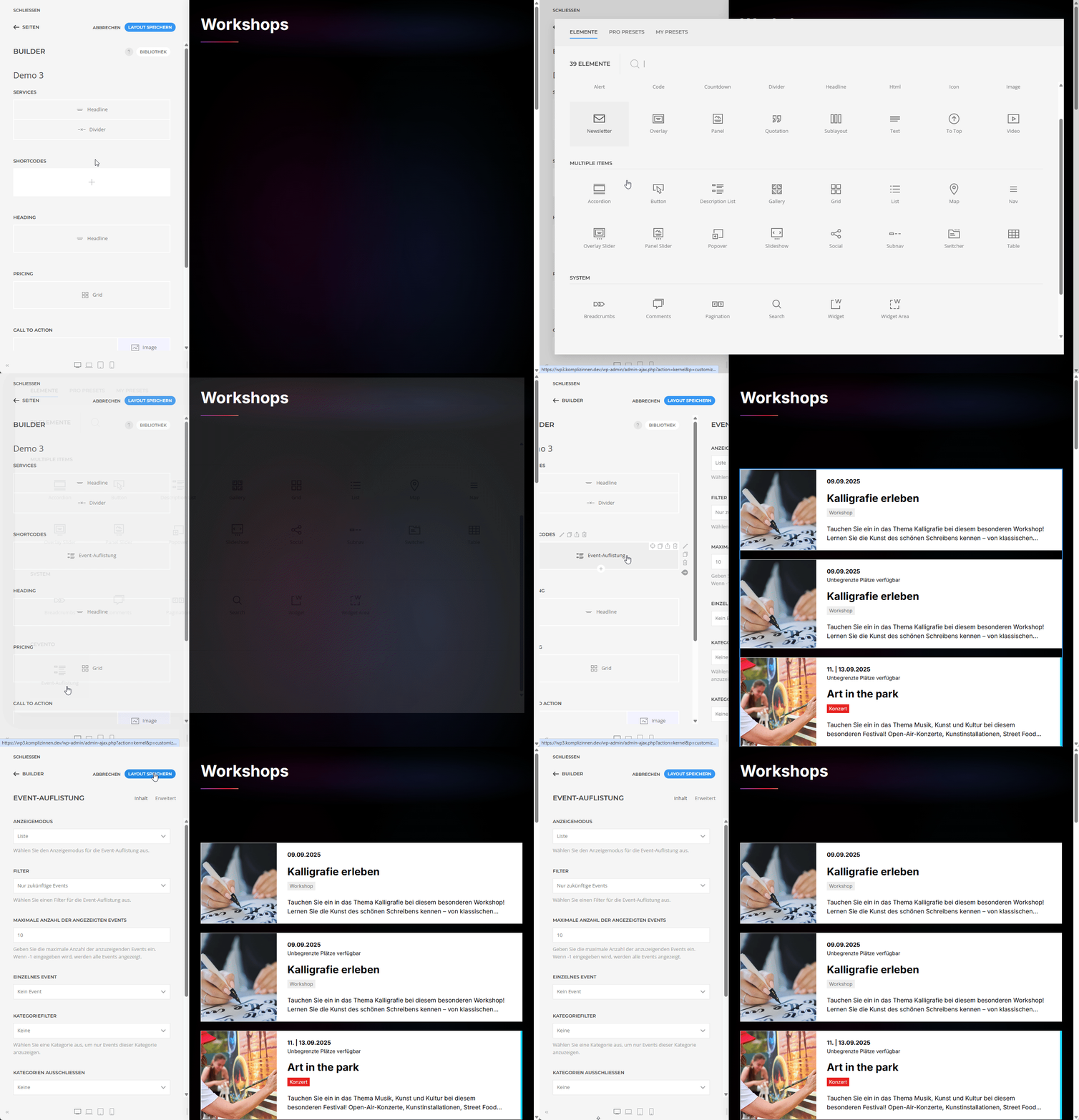
Settings of the Event Listing
The following section explains the settings you can configure for the element in the YOOtheme Page Builder.
Filter
In this dropdown, you can choose whether to display only Future Events, Past Events, or All Events.
Single Event
In this dropdown, you can choose to display only a single event and specify which one.
Maximum number of displayed events
Enter the maximum number of events (per page) to be shown in the event view. If you don’t enable Pagination, only the first X events will be displayed. If no Limit is set, all events of your shortcode will be displayed.
Categories
In this dropdown, you can select a single event category to be displayed. If no category is selected, all events will be displayed. If a category is selected, only events assigned to this category will be shown.
Exclude Categories
In this dropdown, you can define which category should be excluded from the event view. Any event assigned to this category will be excluded and not displayed.
Category Filter
If you enable the Category Filter checkbox, a navigation will appear above your event list, allowing users to filter the displayed events by category.
Enable Pagination
If you enable the Pagination checkbox for your event view, a page navigation will appear once the defined number of events (field named Limit) has been reached. This allows users to browse through all your events.
Order
You can sort your event view by date in ascending or descending order.
Need more flexibility?
If you’d like to design the event view entirely according to your needs, use the Shortcode Builder from Cevento.