Shortcode Builder
In this post, we’ll walk you through:
Cevento allows you to insert event views anywhere on your website where WordPress shortcodes are supported, using a shortcode. This way, you can also embed multiple different views (e.g. filtered by category). You can find the Shortcode Builder in the WordPress dashboard under Cevento → Shortcode Builder.
Examples of use:
- place only the next 3 upcoming events as a list on your homepage
- insert only events from the category “Workshops” into a blog post in a grid layout
- display all past events with pagination in a compact view on a year-in-review page
Create a shortcode
In the left panel of the Shortcode Builder, you’ll find the configuration options for your shortcode. In the right panel, you’ll see the generated shortcode. By clicking the icon, you can copy the shortcode and insert it into your website. The following sections explain the different configuration options. You can adjust the display and filter which events will be output.
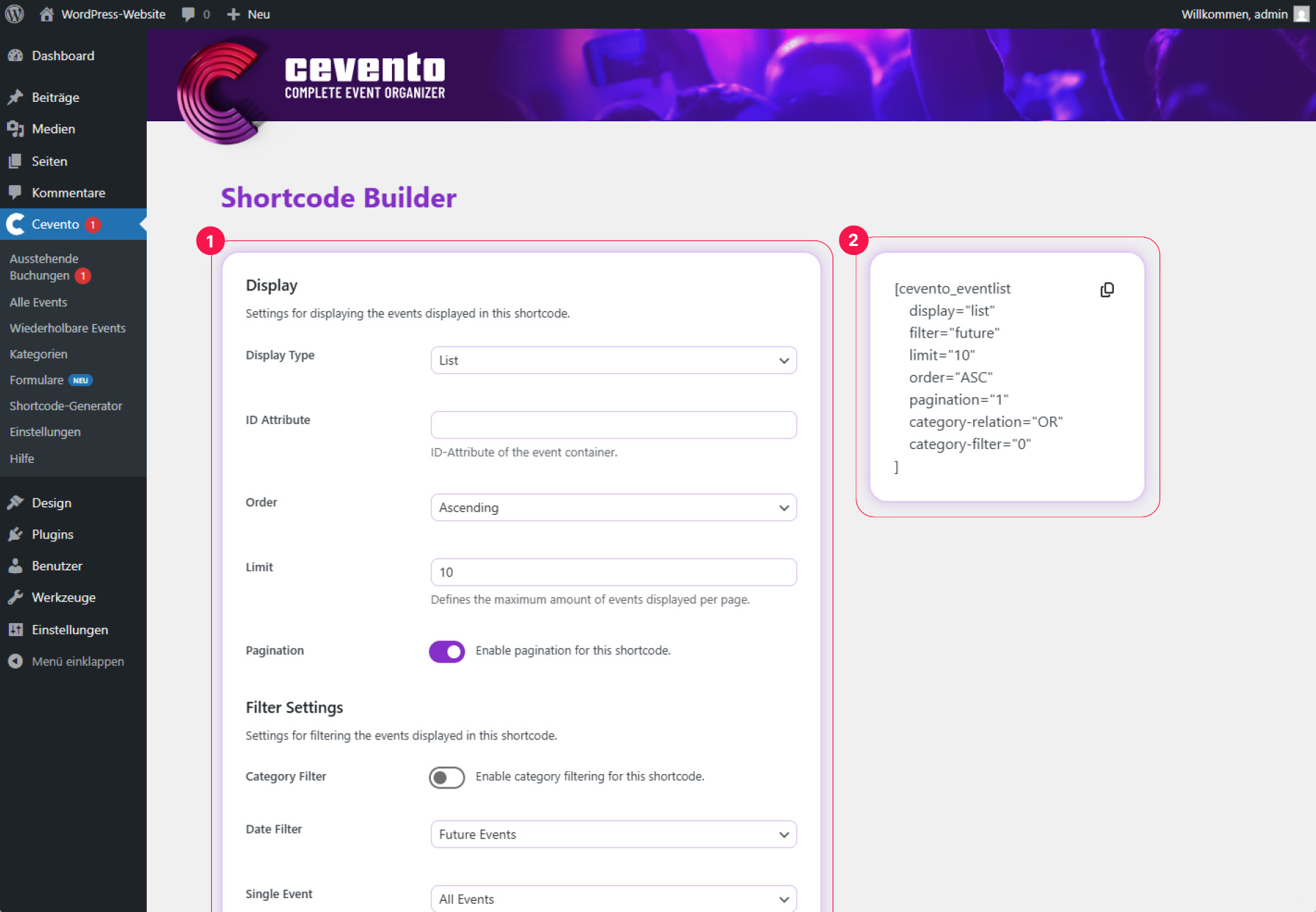
[1] Shortcode settings, [2] Shortcode (copyable)
Display
These settings control the output and appearance of your event view.
Display Type
In the Display Type dropdown, you can choose a layout for your event view (List, Grid or Summary).
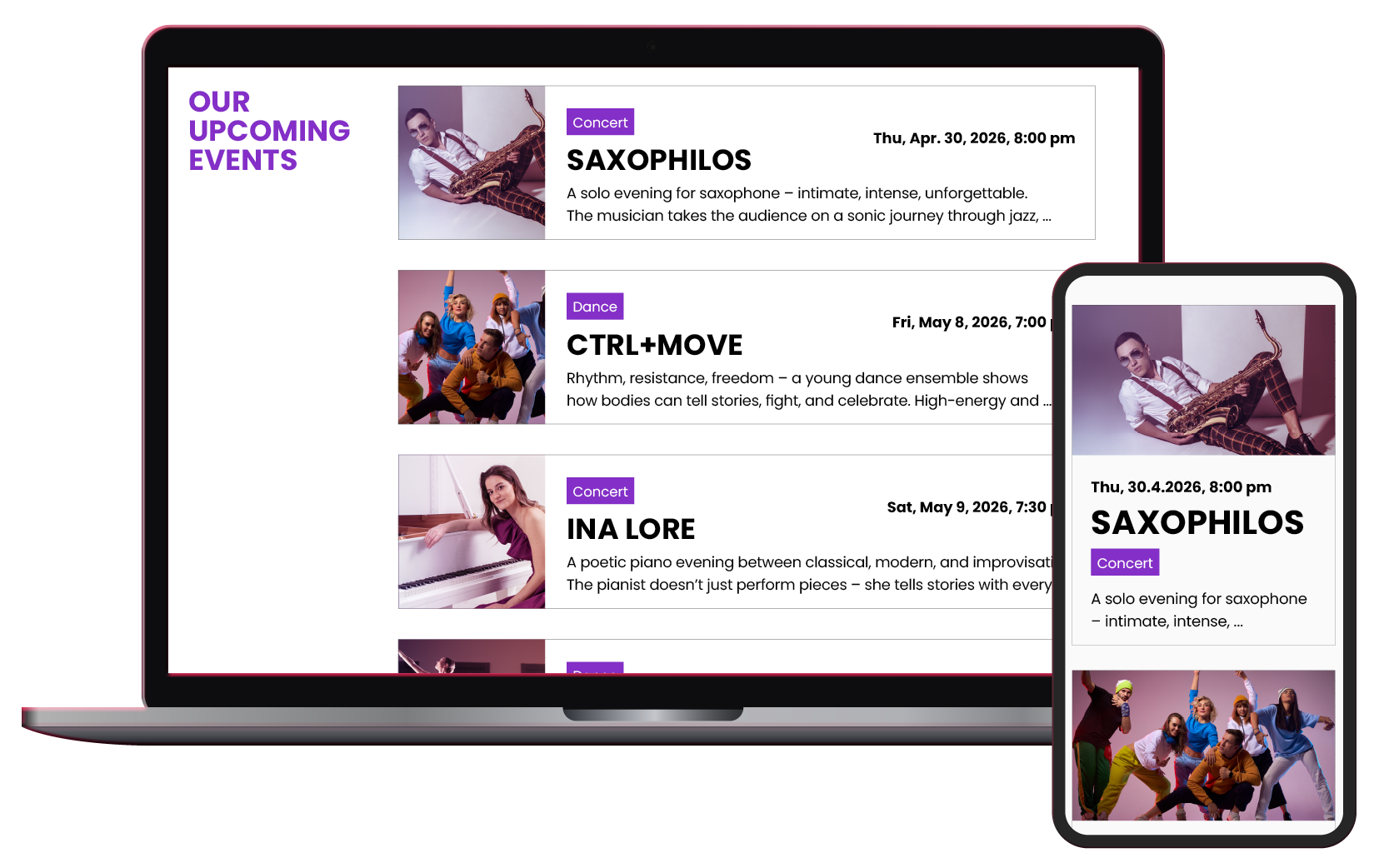
Example archive layout “List”
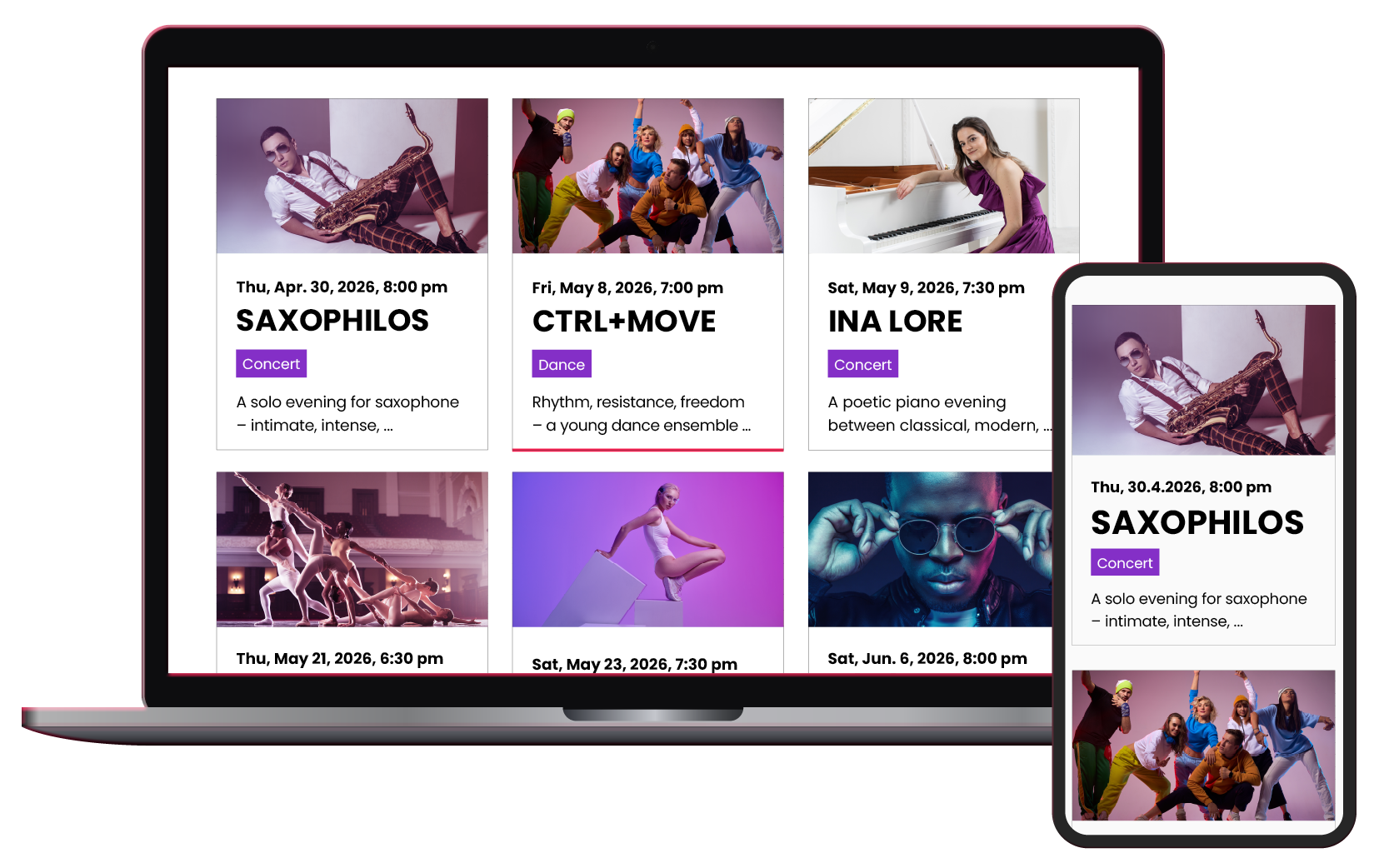
Example archive layout “Grid”
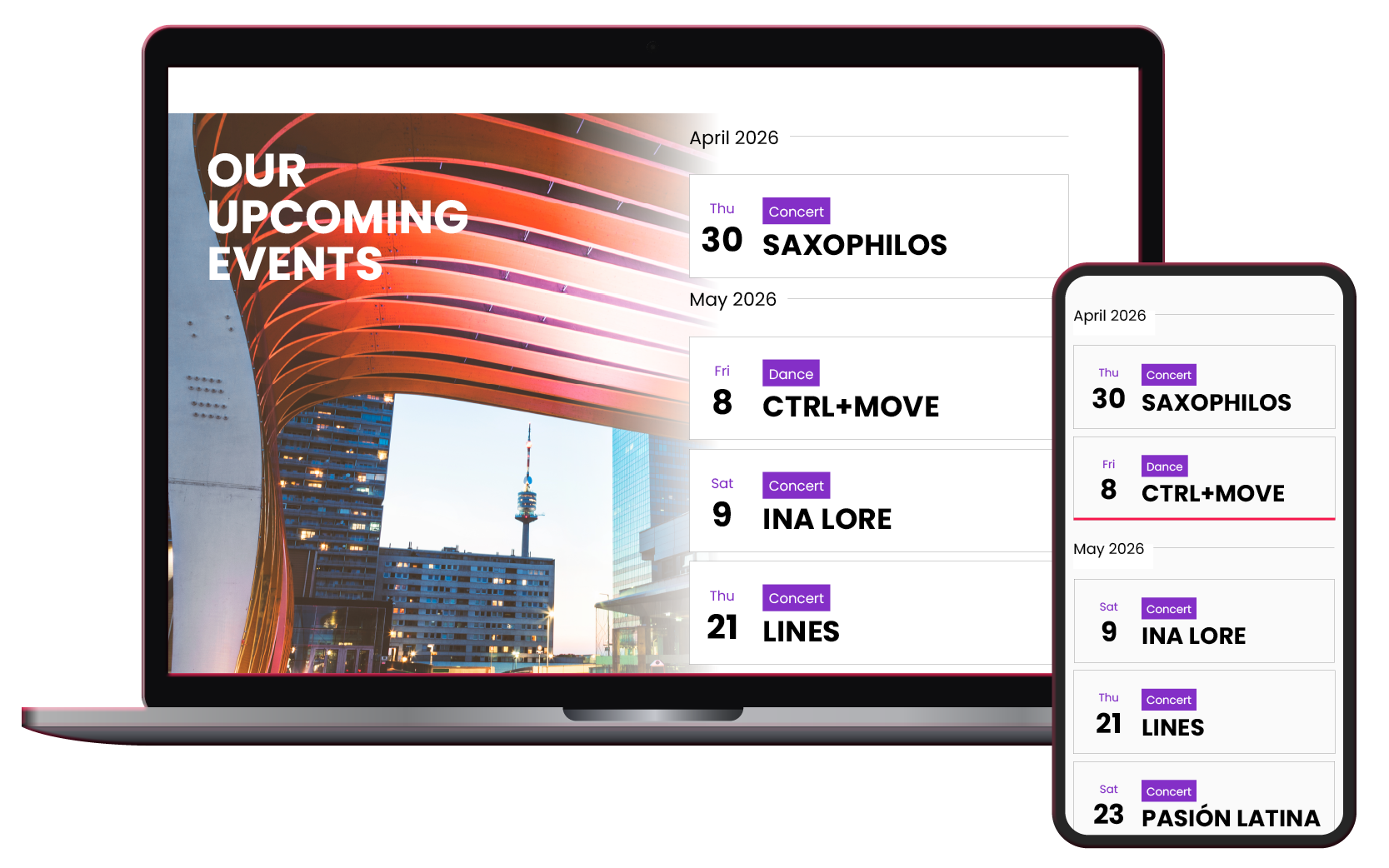
Example archive layout “Summary”
ID Attribute
You can assign an ID Attribute to the container of your event view, e.g. for creating anchor links. Depending on usage, make sure you follow ID requirements. A safe practice is to use only lowercase letters and hyphens.
Order
Sort your event view by date, ascending or descending.
Limit
Enter the maximum number of events to display per page. If you don’t enable Pagination, only the first X events will be shown. If no Limit is set, all events matching the shortcode will be displayed.
Pagination
If enabled, Pagination will add navigation links at the end of the list, so users can browse through all your events.
Category Filter
If you enable the Category Filter, a navigation bar will appear above the event list, allowing users to filter displayed events by category.
Filter Settings
These options let you pre-filter which events are displayed by the shortcode.
Date Filter
Choose whether to display only Future Events, Past Events or All Events.
Single Event
Here you can define whether to display only a single event, and select which one.
Categories
Select one or more categories of events to display. If no categories are selected, all events will be shown. If categories are selected, only events from those categories will be displayed.
To select multiple categories, hold Shift or Ctrl / Cmd and click on the categories.
To deselect a category, hold Shift and click on it again.
Category Relation
Define how the selected categories are combined. If you choose AND, only events assigned to all selected categories will be shown. If you choose OR, events from any of the selected categories will be displayed.
Exclude Categories
Select categories that should be excluded from the event view. Any event assigned to one or more of the excluded categories will not be displayed. This works the same way as the Categories selection above.
Insert shortcode into your website
In the right panel, you’ll see the generated shortcode. It will look something like this and may include several attributes depending on your settings:
You can copy it to your clipboard by clicking the icon. In the WordPress block editor, add a block called “Shortcode” and paste the shortcode there. If you are not using the block editor, paste the shortcode directly into the content of a page or post. At that location, the generated event view will be displayed.
Structure of a shortcode
A Cevento shortcode for an event view consists of the keyword cevento_eventlist and its attributes. It looks something like this and may include more or different attributes:
[cevento_eventlist limit="10" link="true" category="12"]| Below you’ll find a table describing all possible attributes. | Name | Default | Description |
|---|---|---|---|
| display | "list" |
Defines how events are displayed. Options: List ("list"), Grid ("grid"), or Summary ("summary"). |
|
| limit | 10 |
Maximum number of events per page. Only whole numbers are accepted. | |
| link | true |
Determines whether the listed events should link to their single event view. | |
| id | null |
Defines the ID attribute of the event list container. | |
| category-filter | 0 |
Determines whether a category filter navigation should be displayed above the event view. | |
| category | null |
Restricts output to one or more categories. Categories can be passed by ID or slug, separated by commas. | |
| category-relation | "OR" |
Defines how multiple selected categories are combined. "OR" = at least one must match, "AND" = all must match. |
|
| category-exclude | null |
Excludes events assigned to specific categories. Categories can be passed by ID or slug, separated by commas. All excluded categories are combined with "OR". |
|
| event-id | null |
Displays only a single event if its ID is provided. | |
| pagination | 0 |
Enables pagination if set to 1. A pagination bar will appear at the bottom of the list. |
|
| filter | "future" |
Defines which events are displayed: "future" (upcoming), "past" (past), or "all" (all). |
|
| order | "ASC" |
Sort order of events by date. Possible values: "ASC" (ascending) or "DESC" (descending). |