Cevento Dashboard
In this post, we’ll walk you through:
Cevento adds its own dashboard to your WordPress menu, where you can add, edit, and manage events. You will also find booking management and many other features in this Cevento dashboard.
Where do I find the Cevento dashboard?
You can find the Cevento dashboard in the WordPress menu under Cevento. Once you click on the menu item, you will see the links to the individual sections of the Cevento dashboard. The following introduces these sections and provides guidance for navigating the event table.
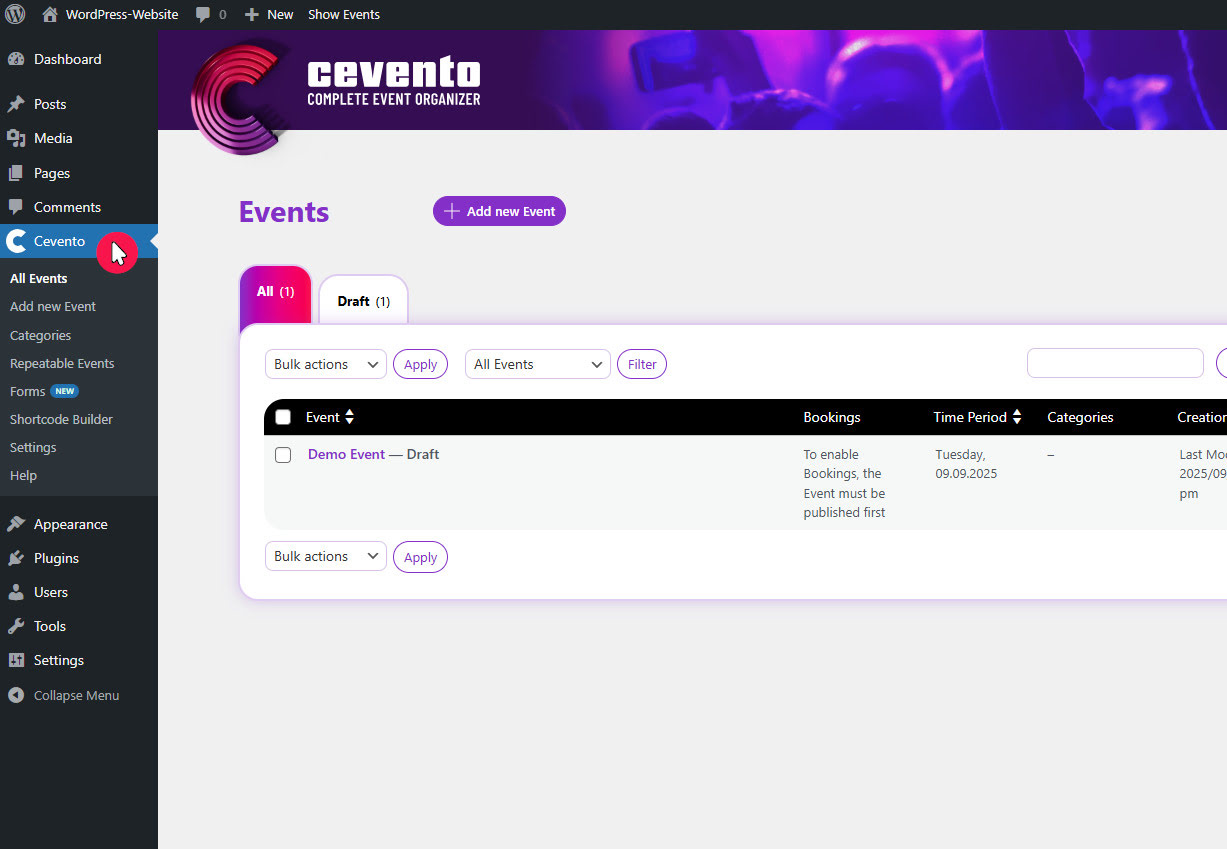
All Events
The following explains which elements are shown in the All Events overview and what actions you can perform here.
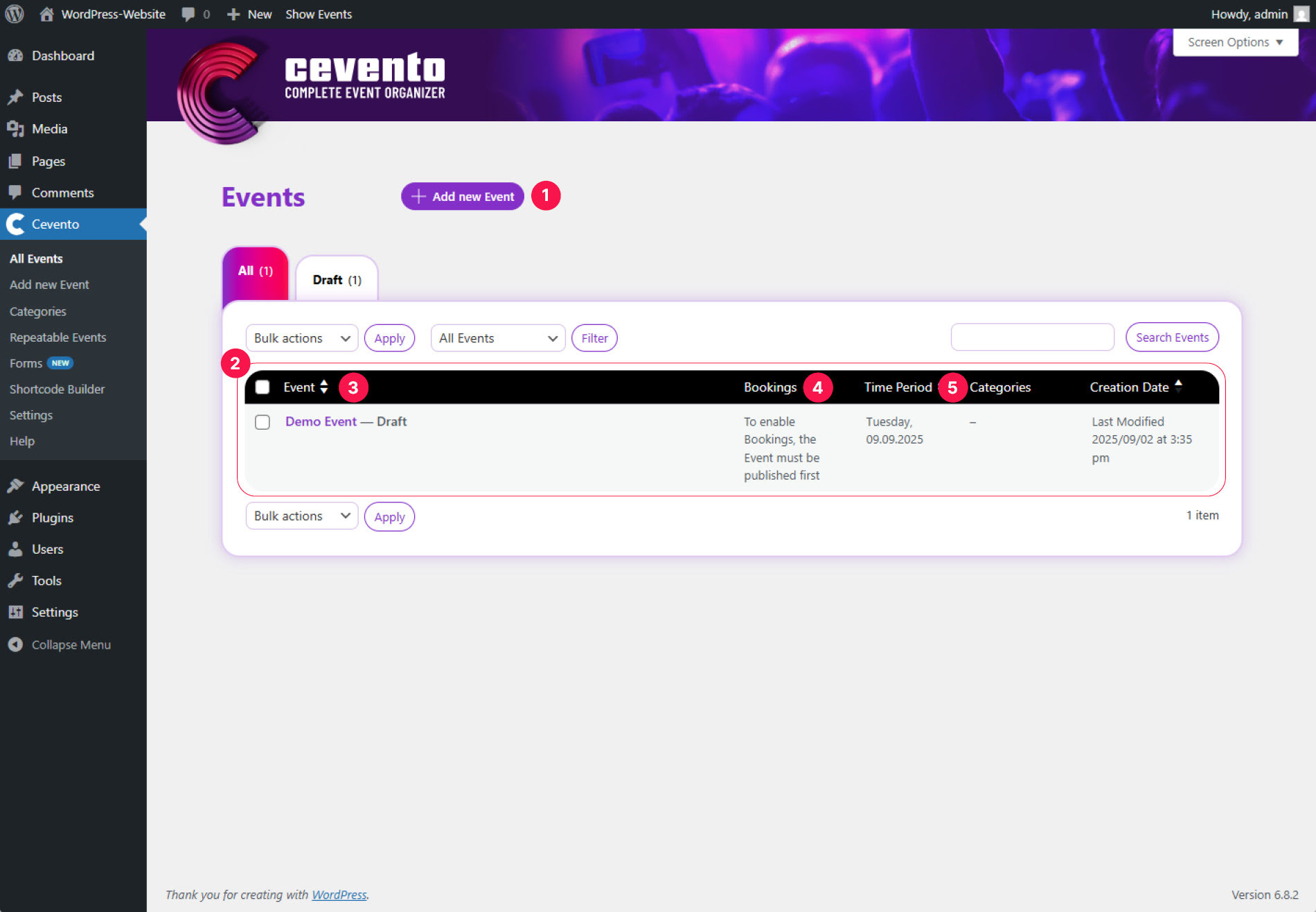
[1] Button Add new Event, [2] Event table, [3] Event, [4] Bookings, [5] Time Period
Button Add new Event
Click the button Add new Event to add a new event. After clicking, the event editor opens.
Event table
Below the heading and the button is the event table, where you can see an overview of all your individual events. Most functions are already familiar from the WordPress universe. Features unique to Cevento are explained below.
Filter the event table
You have two dropdowns with which you can filter the event table: first by date and second by booking status of the events. After selecting filters, click the button Filter.
Event
In the Event column, you may see the draft status and whether the event is a Repeated Event. With Repeated Event, individual events managed by a Recurring Event are marked. Information about types of events can be found in this documentation.
When you hover your mouse over the event title, the available actions for that event appear below. How to edit an event or manage bookings is explained in this documentation.
Bookings
In this Bookings column, you will see whether bookings are enabled for this event and the number of bookings per status.
Time Period
In the Time Period column, you see the dates and times of the events.
Recurring Events
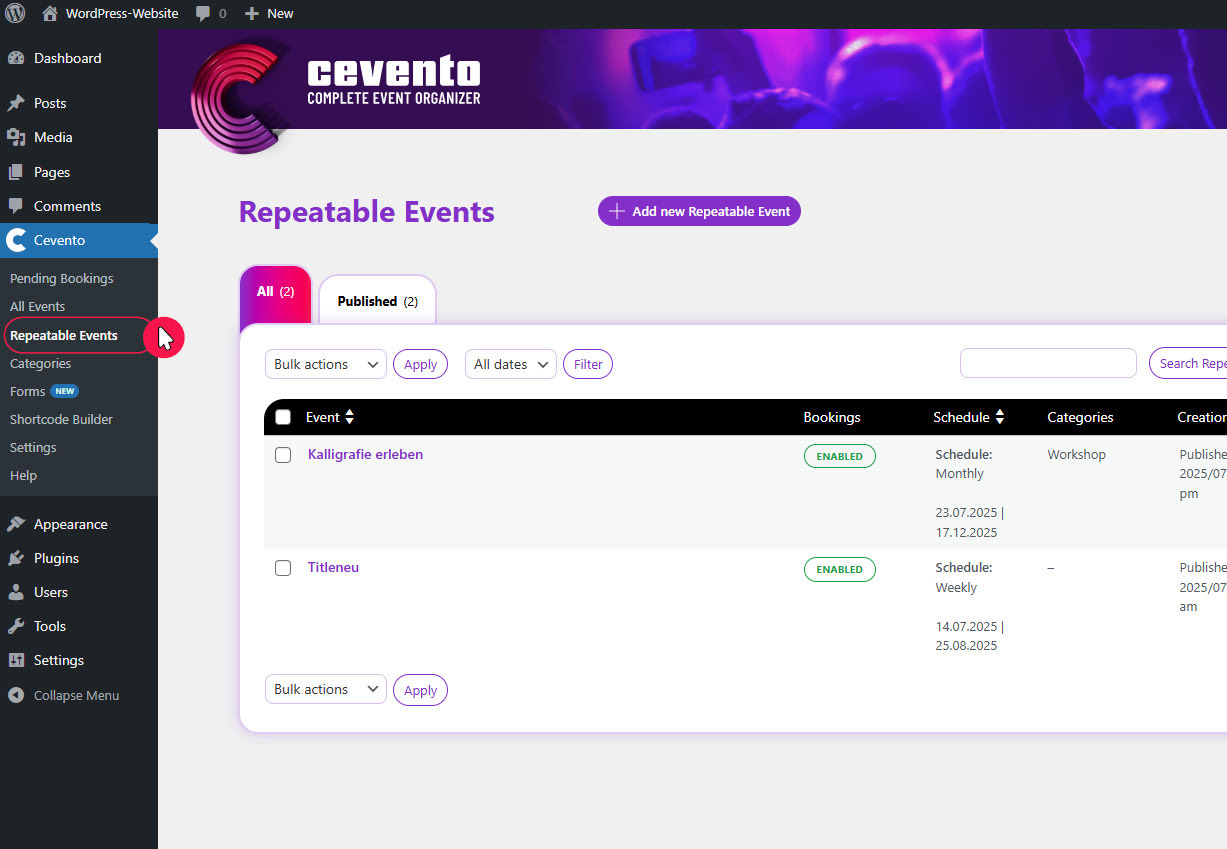
In the overview called Recurring Events you will find an event table with the Recurring Events. This overview is structured the same way as the overview called All Events.
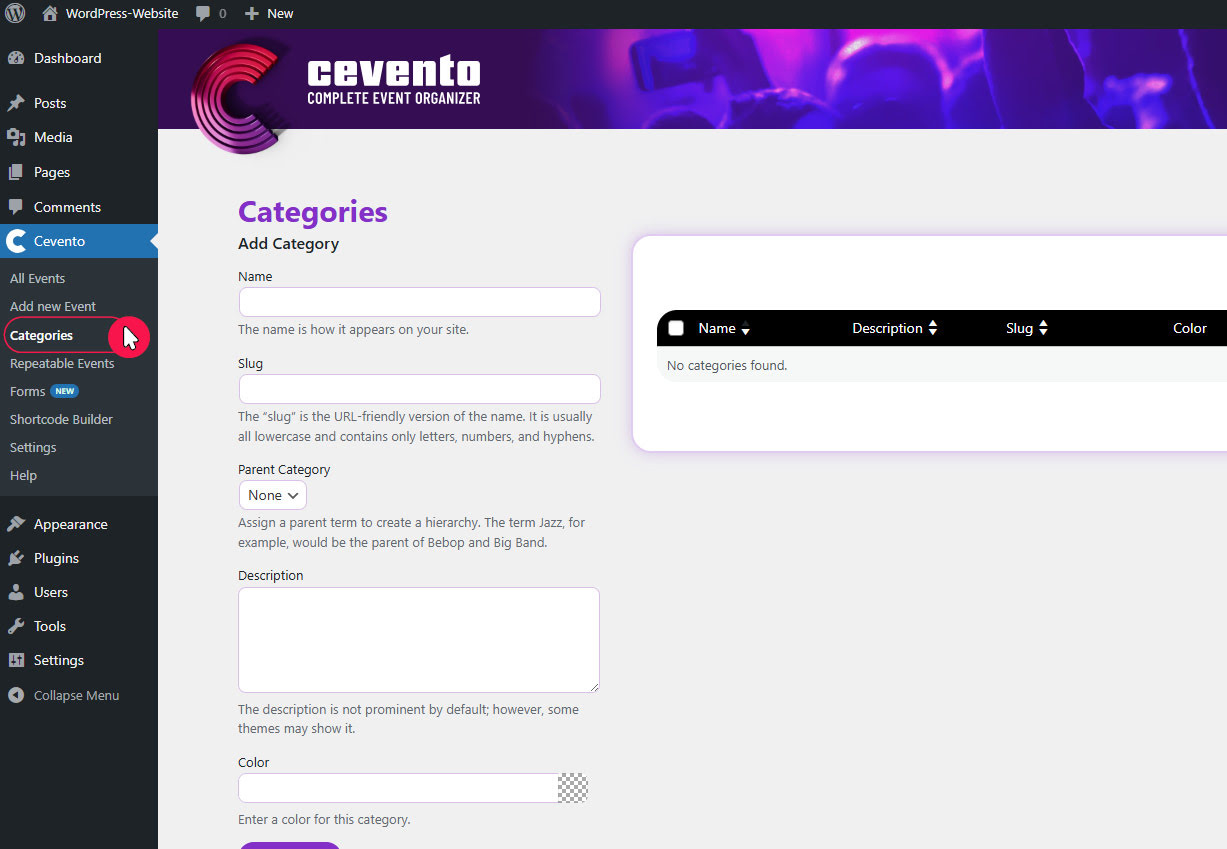
Categories
Here you will find the creation form and the categories table. How to create and manage categories is explained in this documentation.
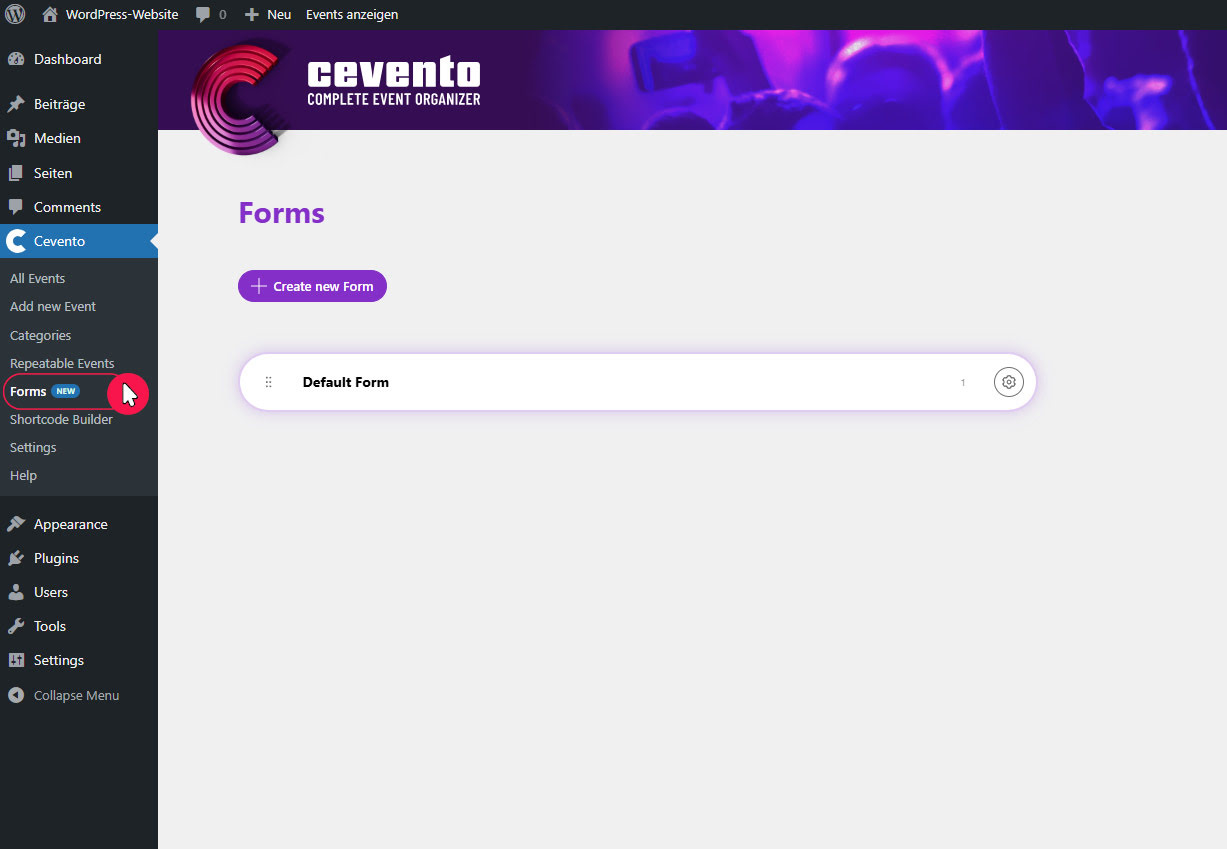
Forms
In this section you will find all your booking forms. Everything important about forms and the form builder can be found in this documentation.
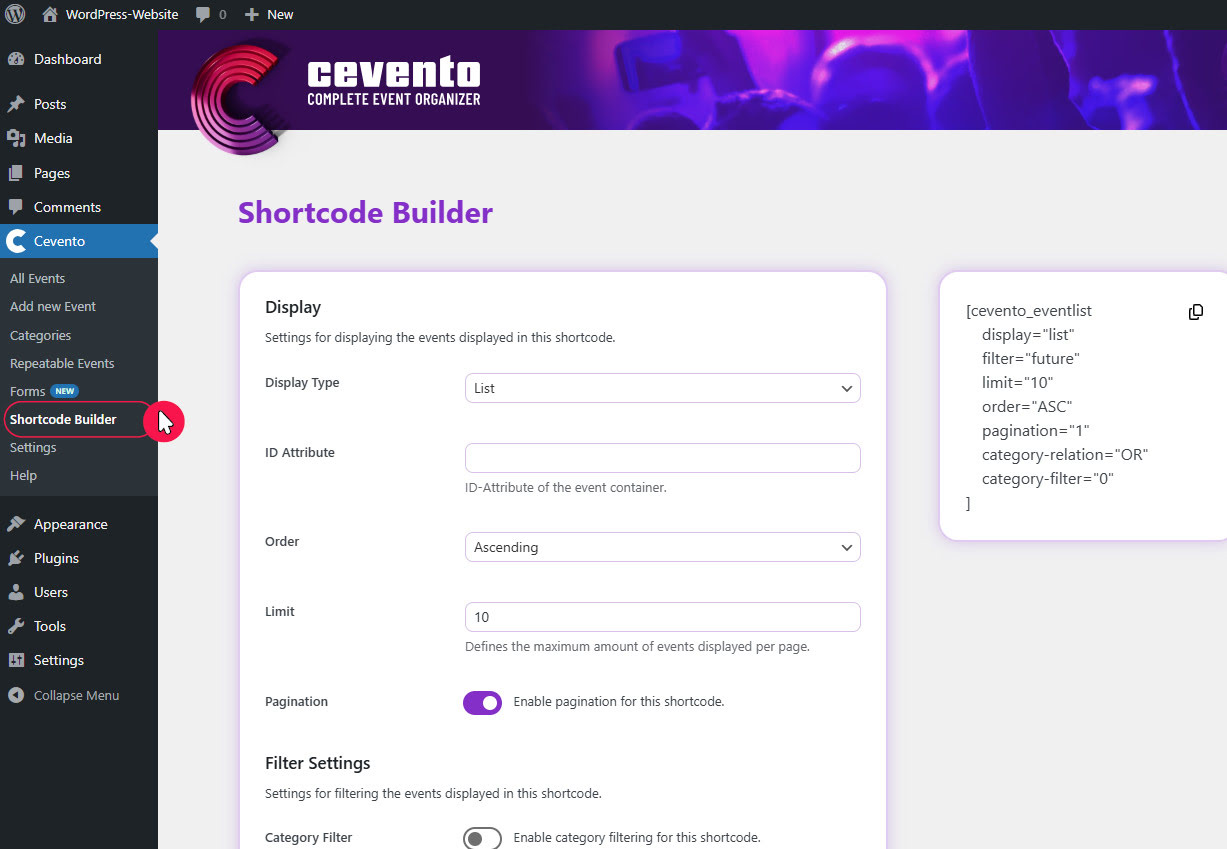
Shortcode Builder
This section contains the Shortcode Builder and the shortcode generated from it. How to create a shortcode to embed various event views on your website is explained in this documentation.
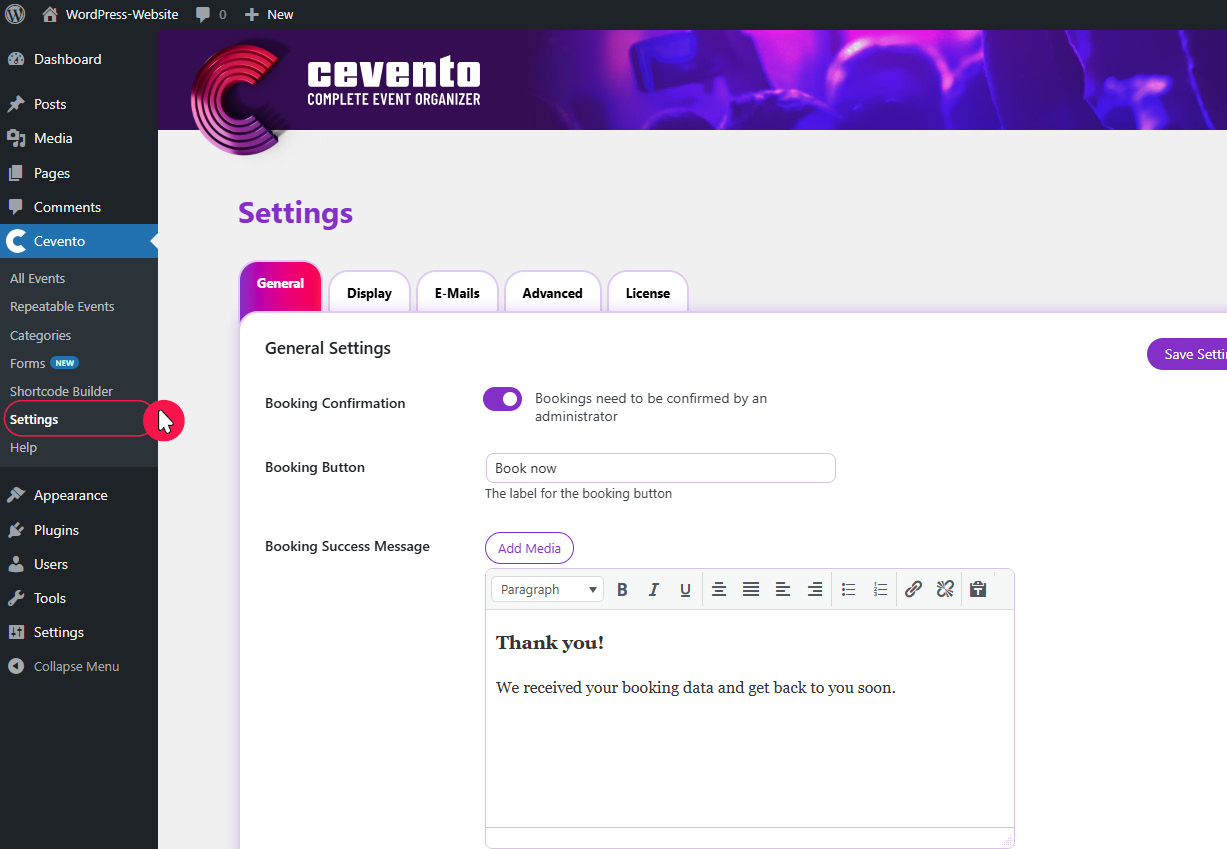
Settings
In this section you will find all global settings for the Cevento plugin.
Help
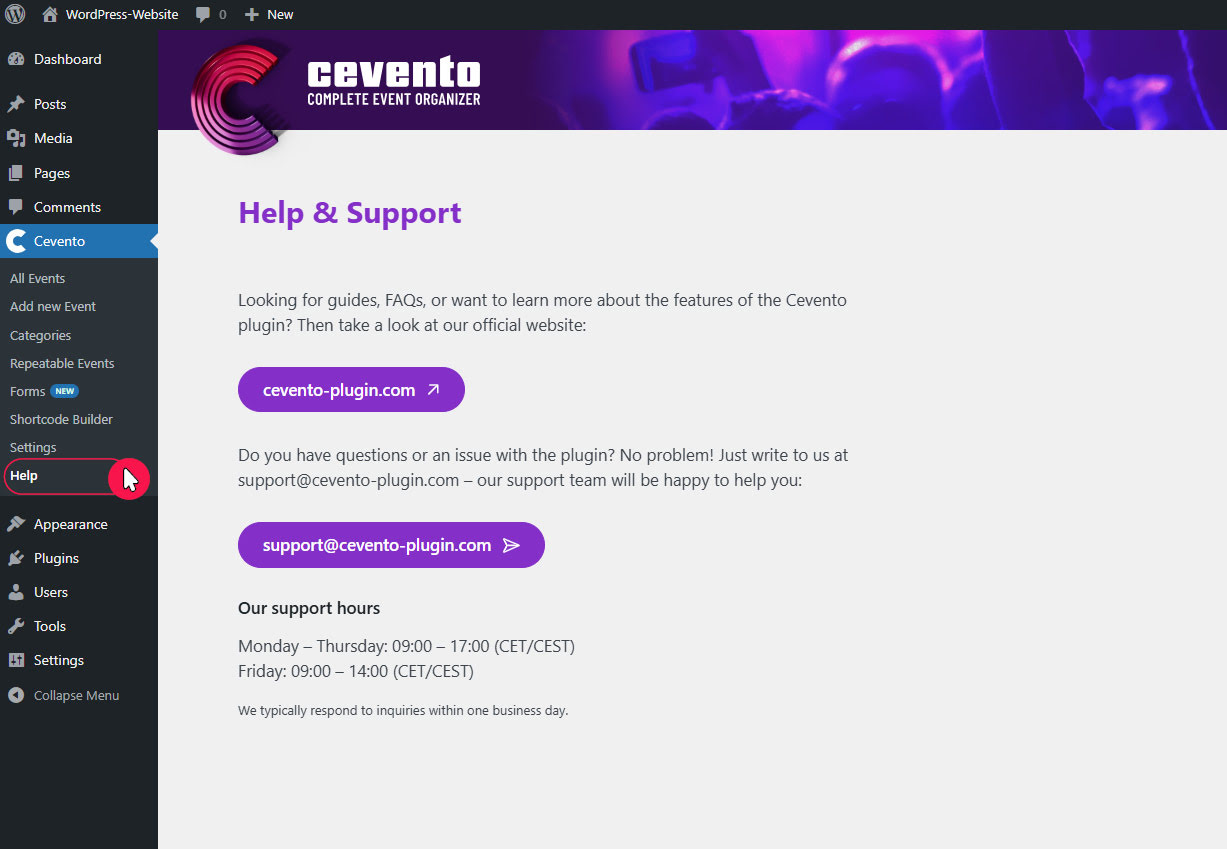
In this section you will find a link to the Cevento website and information about support.